Configuration
This page collects the web interface and runtime settings that are exposed on the management card.
Web Interface
OpenNMC is operated primarily through the browser-based web interface.
The frontend is served by lighttpd, and the backend runs on the management card itself.
Sign In
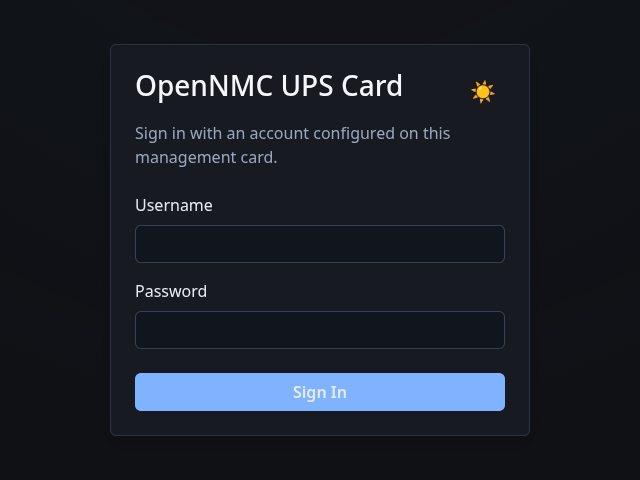
The login page is the entry point for normal use. Signed-in users are authenticated against the local system accounts, with PAM handling the backend check. The form takes the local username and password for the card.
Main Layout

After sign-in, the interface is split into three tabs:
OverviewSettingsUsers
On the left of the navigation bar the Hostname, UPS Model, and UPS Serial Number are shown.
On the right the user can change the password, sign out, or switch the color theme.
Only users with the right permissions see Settings.
The Users tab is visible to any signed-in user, but management actions are restricted by permission.
Overview
The Overview tab is the live monitoring view.
It shows:
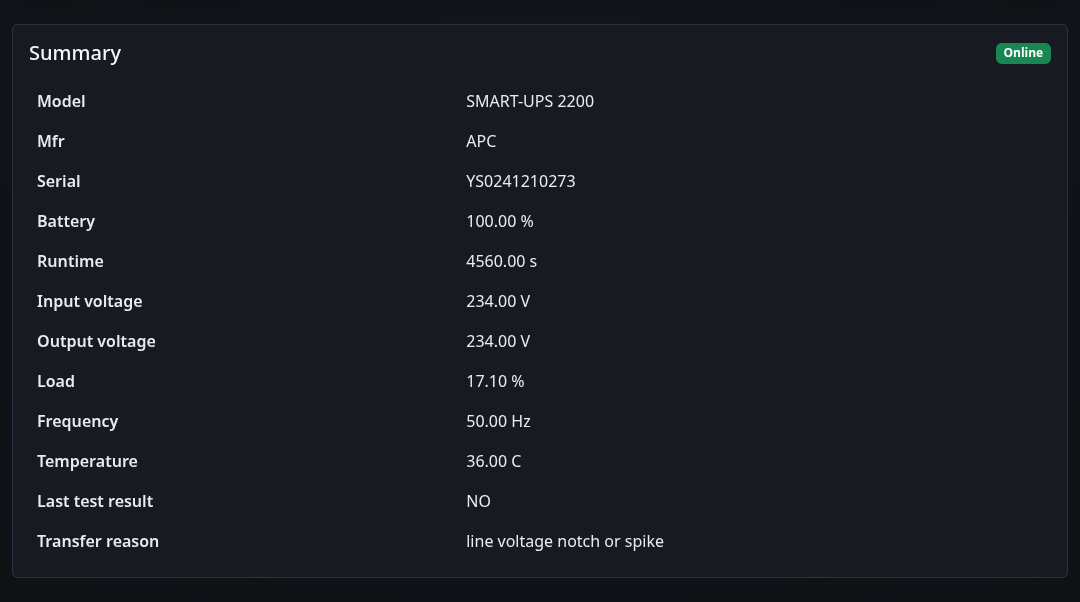
The summary table shows the current UPS state, battery charge, runtime, voltages, load, frequency, temperature, and transfer reason.
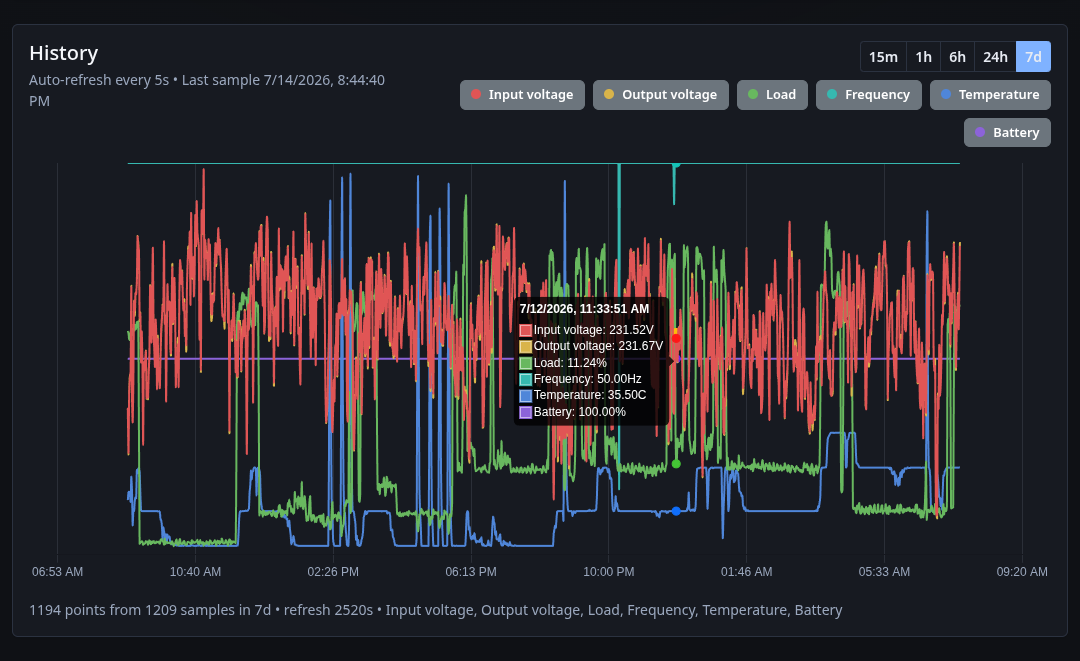
The chart shows recent operational data with selectable time ranges. It is intended for live troubleshooting, not long-term archiving.

The control buttons only appear when the account and UPS both allow them. They are limited to the safe instant commands that are supported by the attached UPS.
The raw table shows the underlying NUT variables in read-only form. It is mainly intended for debugging.
Settings
The Settings tab is where operators manage the card.
It contains the system, history, update, MQTT, and network forms.
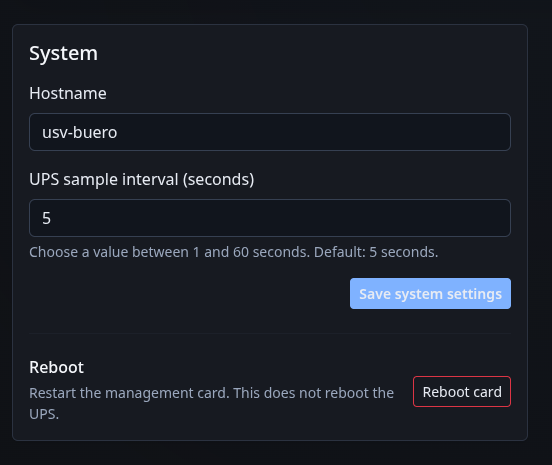
The system form has two inputs:
Hostname: sets the management card name shown in the UI and on the networkUPS sample interval: controls how often OpenNMC polls NUT for live values and history samples
The reboot button restarts the management card only. It does not reboot the UPS load.
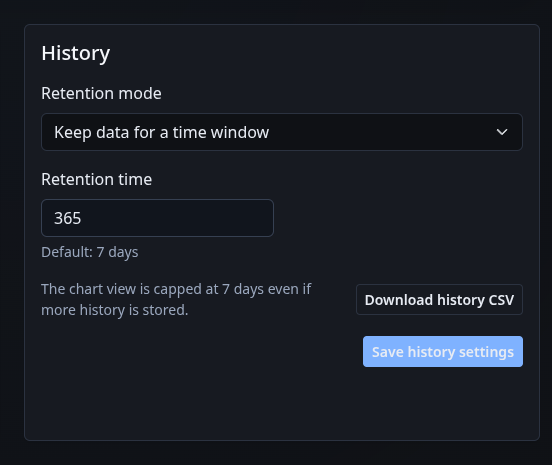
The history form controls how much data OpenNMC keeps.
It offers two retention modes:
Keep data for a time windowKeep data up to a file size
The CSV download exports the stored history directly from the card. The overview chart still only shows recent ranges.
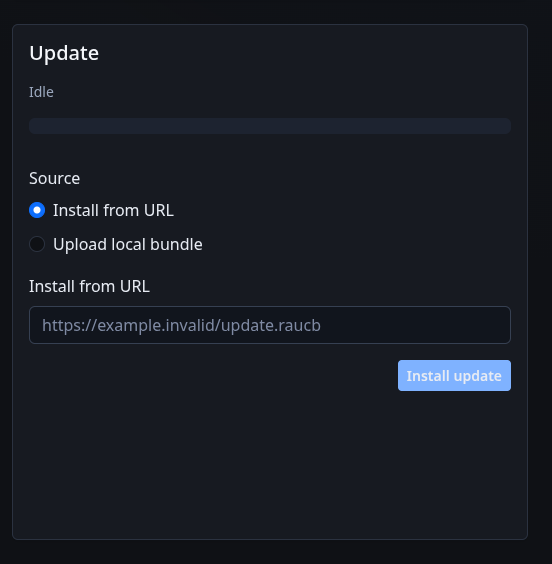
The update form accepts either:
Install from URLUpload local bundle
The card can install bundles from OpenNMC Releases or from a custom URL. For train switching and the matching keyrings, see Firmware Trains.
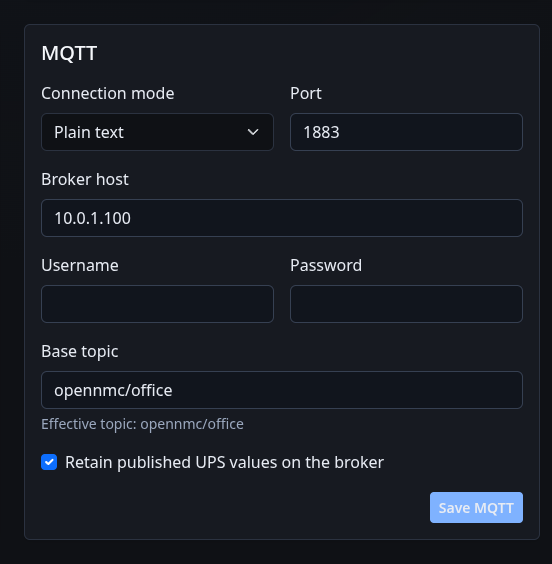
The MQTT form publishes card data to an external broker. The inputs are:
Connection mode: enables or disables MQTT publishingHost: broker address or namePort: broker TCP portUsername: broker login namePassword: broker login passwordTopic: base topic for published valuesRetain: keeps the latest message on the broker
The topic field uses the hostname as the default topic when one is available. The effective topic is shown under the field after the settings are loaded.
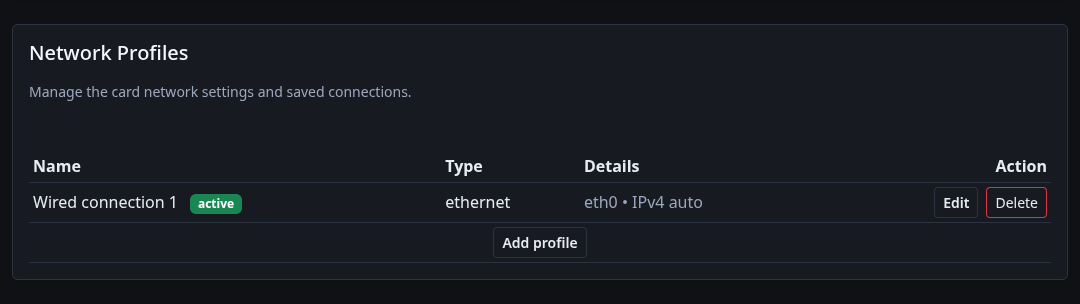
The network form manages NetworkManager profiles for Ethernet, Wi-Fi, and VLAN connections. It can also scan for Wi-Fi networks on a selected interface.
Wired Profile
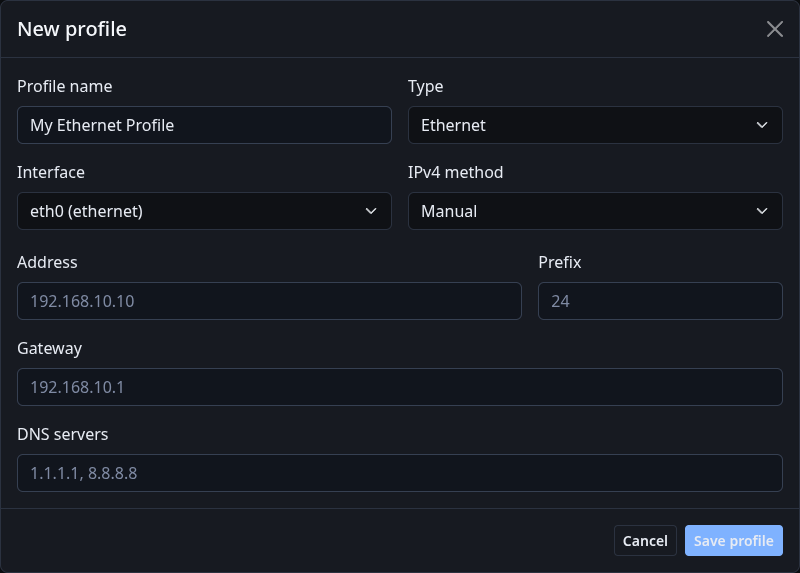
The wired profile uses the selected Ethernet interface and supports automatic or manual IPv4 settings.
Wireless Profile
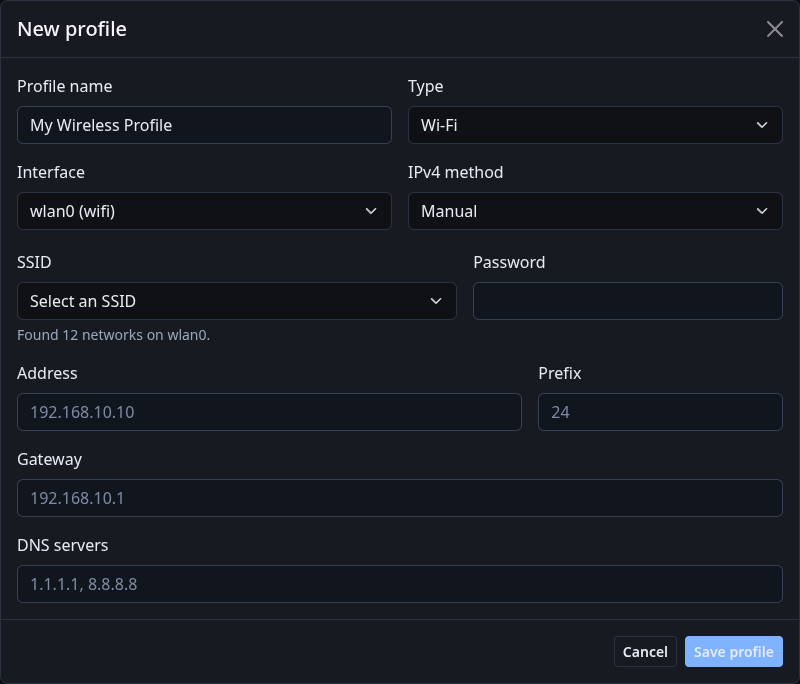
The wireless profile uses the selected Wi-Fi interface and SSID. The password field is only needed when the network requires it.
VLAN Profile
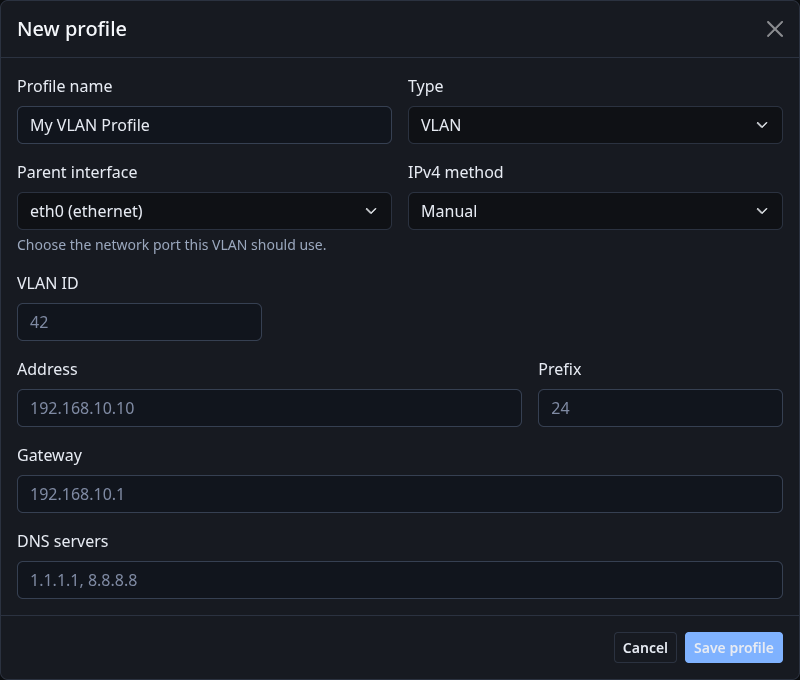
The VLAN profile uses a parent network interface and a VLAN ID. Manual IPv4 settings are available for all profile types.
Users

The Users tab shows local users that exist on the device.
It is used to:
- create and edit managed local users
- control admin membership
- assign NUT read, monitor, set, instant-command, and FSD permissions
Users with UID >= 1000 can sign in to the web interface.
Administrator access is provided by membership in the configured admin group, which defaults to wheel.
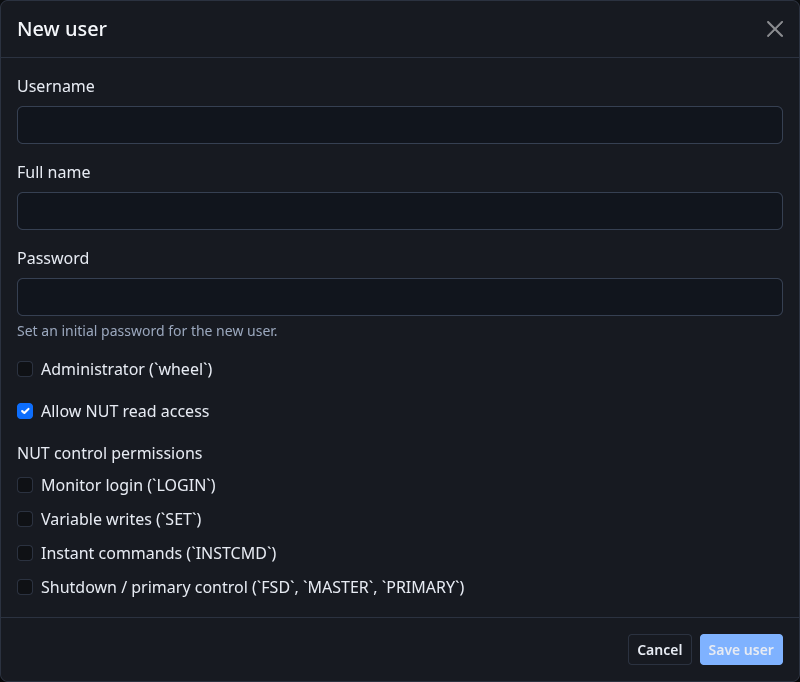
The user form takes the username, full name, password, admin flag, and NUT permission flags.